Frequently Asked Questions
Questions About Zes
Ensure the cable is connected to both your vehicle and the station. Then hold your Zes card over the card reader on the charger to start charging.
AC (Alternating Current) stations charge a vehicle in about 7–8 hours (depending on vehicle model).
DC (Direct Current) stations provide faster charging, typically taking 30–60 minutes depending on vehicle and station power.
Yes, DC stations come with built-in cables. AC stations require you to use your own Type 2 cable.
Plug your own cable into the vehicle at AC stations, or use the built-in cables at DC stations. You just need the Zes app or Zes card to use public charging stations.
"Connect the cable to both your vehicle and the station, then:
Tap your Zes card on the reader, or
Scan the QR code on the station or socket with the Zes app.
To stop charging, tap your card again or use the “Stop Charging” button in the app map. Don’t forget to remove the cable afterward!"
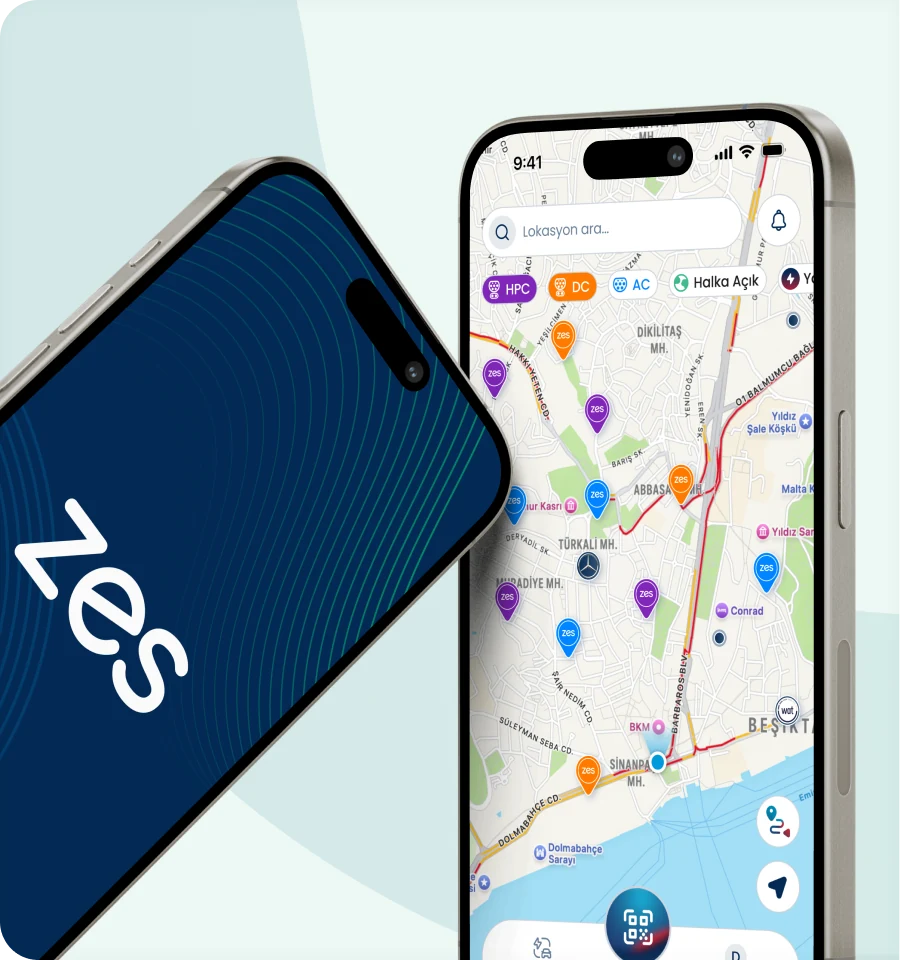
"Zes has public charging stations across all 81 provinces of Türkiye and along highways. In the app’s “Map” section, you can view stations, their availability, details, and even plan routes. You can also see the full list on the “Charging Points” page of our website."
"Public station info is available on the Zes website’s “Charging Stations” page and within the app."
In the app (“Map” page) or on the “Charging Stations” page on the website.
You can see real-time socket availability in the app. For DC stations, if someone is charging, you’ll also see the % charge progress. You can tap “Notify Me” to get an alert when the charging finishes.
In the app, select the station and use the “Directions” button to view kilometers and create a route.
If charging is active, you can track it live via the “Map” screen in the Zes app.
All fully electric and plug-in hybrid vehicles are compatible.
Once charging has started correctly, the cable locks in place at both the station and vehicle to prevent interference. If a technical issue causes it to disconnect, call Customer Service at 0 850 339 99 37.
The socket code is below the station’s QR code and is also displayed in the app.
Yes. If you're unable to start charging normally, select “Start Charging with Socket Code” under the QR scanning screen in the app and enter the code.
Contact Zes Customer Service at 0850 339 99 37.
In the Zes app, search for a location or tap a pin on the map. In the station’s “Details” page, tap “Make Reservation,” and choose your preferred date and time.
The socket is held for you starting 15 minutes before until 15 minutes after your reservation time. You can start charging in that window.
Yes—if the socket is currently available. If you finish charging before the start of your reservation, your reservation will be canceled.
Go to “Transactions” › “Upcoming Transactions” in the app. You can cancel once, either before your reservation starts or within the first 15 minutes after it begins—without any fee
No penalty. Your reservation will be canceled automatically.
You can’t remotely remove it, but you can report it through the station operator on-site.
Fast Reservation allows you to reserve a socket for 15 minutes ahead—without specifying date or duration. For example, if it’s currently 14:00, it reserves the socket for 14:15. It’s ideal when you need a quick reservation while on the go.
In the app, select the desired socket and tap “Reserve Now.” Confirm the prompt. Fast Reservation requires membership and adding payment info.
If the socket page shows “Reserve Now,” only Fast Reservations are supported there. If it shows “Make Reservation,” you can do standard scheduling.
There are no prerequisites for membership, and it’s completely free. You can sign up from anywhere in the world using your mobile phone number via the Zes Mobile app.
You can register by entering your mobile phone number in our mobile app, Zes.
No, membership is entirely free.
No, there are no conditions. Membership is open to all without prerequisites.
After completing your membership, you can request a Zes card via the mobile app.
Yes, the Zes card is provided at no cost.
If you want a charging unit for your workplace, you can apply by filling out the “Contact Us” form in the mobile app or on the “Services” page of our website.
Yes, through a partnership with Zes. You can install a station and earn revenue. For full details, visit the Services page and fill out the application form. Our technical team will assess and recommend the best device for your site.
Yes. Contact Zes Customer Service at 0 850 339 99 37, and our sales team will inform you about pricing shortly.
Roaming allows you to use not only Zes stations, but also partner networks, visible and accessible via the Zes app.
Yes. You can see roaming stations in the app, check prices, and start charging.
They're marked with a special icon or label. Once you tap the pin, the station’s information card will indicate roaming status.
Select the station and socket in the app and start charging directly in-app; QR code and card options aren’t available.
No. You cannot use Reservation, Autocharge, or QR-code features at roaming stations.
No. Some features such as booking at roaming stations, Autocharge and QR code transactions are not supported.
You’ll receive a push notification in the app and an SMS.
When the charging process is completed, the amount of energy and price information is transmitted to Zes from the relevant operator. Zes then collects the amount from your card and creates your invoice.
Under “Transactions” › “Roaming” in the app.
Autocharge lets you automatically start charging at DC CCS stations just by plugging in—no card or app needed. It’s like how your phone charges when plugged in.
No, it's a free feature for a smoother charging experience.
"Go to “My Profile” › “My Vehicles” in the app or via the CCS socket after charging and press “Activate.”
At your first CCS charging session, connect the cable, wait ~15 seconds, then start charging with the app or card. You’ll receive a confirmation notification.
Afterwards, plugging in to any CCS socket at a Zes DC station will automatically begin charging."
Use the app or Zes card as usual.
Yes—track your charging and percentage in the app during DC CCS sessions.
Yes—any compatible vehicles can be activated individually.
Only at Zes DC stations with CCS sockets.
Make sure you activated Autocharge, completed the initial registration (with app/card), and confirm your vehicle supports Autocharge via “My Vehicles” in the app.
Go to “My Profile” › “My Vehicles” and click “Deactivate.” It will disable for all vehicles. Reactivation requires repeating the setup steps.
Deactivate before you sell. Otherwise, the new owner might start charging under your account unknowingly.
Yes—with your vehicle added and Autocharge activated. Don’t delete it to ensure continued compatibility.
Yes, reservations are tied to the most recently activated vehicle.
If you receive this wrongly, contact 0 850 339 99 37 or live chat immediately. Typically, this happens if you didn’t deactivate before selling your vehicle.
"Each vehicle needs a unique code. Some manufacturers share codes, making them incompatible. Unsupported models include:
Audi: e-tron (2018–2019), Q4 e-tron variants
BMW: i7, iX1, 745e, 740le
VW: ID. series, e-Up!, e-Golf
Renault: Zoe ZE40, Twizy, Twingo Electric, Fluence ZE
Rolls-Royce Spectre EV
Seat Mii electric
TOGG T10X
Skywell ET5
XEV iEV7s
Nissan Leaf
Toyota Corolla (DMA)
Smart Fortwo EQ
Aion V, S
Cupra Born
Maxus eDeliver
Citroën Ami
Genesis GV60
DFSK/Seres 3
Mazda MX-30
Mercedes-Benz GLC350e
Lexus UX 300e
Skoda Enyaq iV, Citigo e-iV
Lightyear 0"
A free app that lets iPhone users use Zes via Apple CarPlay screens in compatible electric vehicles.
Connect your iPhone (iOS 7.1 or later) via CarPlay in your vehicle. Once connected, tap the Zes icon to access it on-screen.
In line with the limit set by Apple for CarPlay, you can view 12 locations closest to the location you focus on on the map at the same time. You can also view different locations as you move on the map.
Your iPhone needs iOS 7.1+
Check CarPlay connection (wired/wireless)
Your vehicle must support Apple CarPlay with no software issues
See Apple’s official CarPlay vehicle compatibility list for confirmation
Based on the energy consumed multiplied by the socket rate. For detailed pricing, see the “Prices” page on the website or the pricing section of the mobile app.
Add your credit card in the app. After charging, the total amount is automatically charged to your card and shown in both the app’s pricing section and the website.
Yes. Card information is secured with safe payment systems and not shared with any other entity.